

Connect your coding tool
to your notes.
Claude Code, Claude Desktop, Codex and Cursor can search and read your notes, over a connection that never leaves this Mac.
HushNotes127.0.0.1 Claude CodeClaude Desktop
 Codex
 Cursor
Local endpointOff by defaultThis Mac only
Pick your toolSwitch it on,
copy one URL.
The connection is off until you turn it on. Everything a tool needs is in that one address.
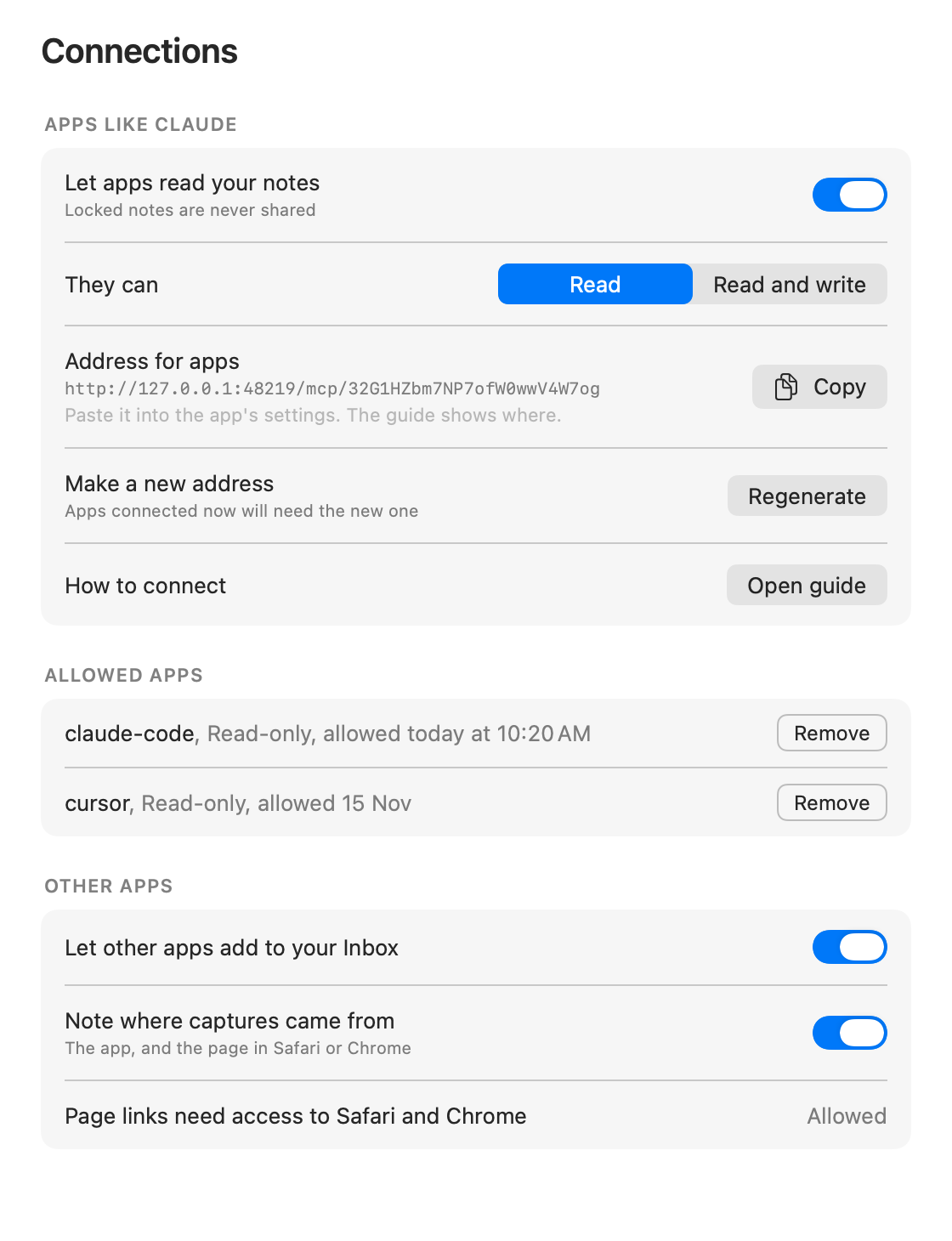
- 01Open Settings › ConnectionsOpen the HushNotes settings and go to Connections.
- 02Switch it onTurn on Let apps read your notes. It answers only on this Mac, and only while HushNotes is running.
- 03Copy the addressClick Copy next to Address for apps. It ends in your own token:
http://127.0.0.1:48219/mcp/YOUR-TOKENBelow, wherever you see YOUR-TOKEN, use the address you copied.
A minute per tool.
Pick yours. Each tab is a short recipe, with a copy button on every block.
- 01
Open a terminal
Use Terminal, in Applications › Utilities, or the terminal you already run Claude Code in.
- 02
Add HushNotes
Paste this, with your own URL at the end, and press Return.
Terminalclaude mcp add --transport http hushnotes \http://127.0.0.1:48219/mcp/YOUR-TOKEN - 03
Check it is there
Run this. The list shows hushnotes as connected.
Terminalclaude mcp list - 04
Allow it in HushNotes
The first time Claude Code asks for your notes, HushNotes shows a card named claude-code. Click Allow. What the card looks like
You approve each tool,
by name.
The first time a tool connects, HushNotes shows this card. Nothing is shared until you answer it. Allowed apps are listed in Settings › Connections.
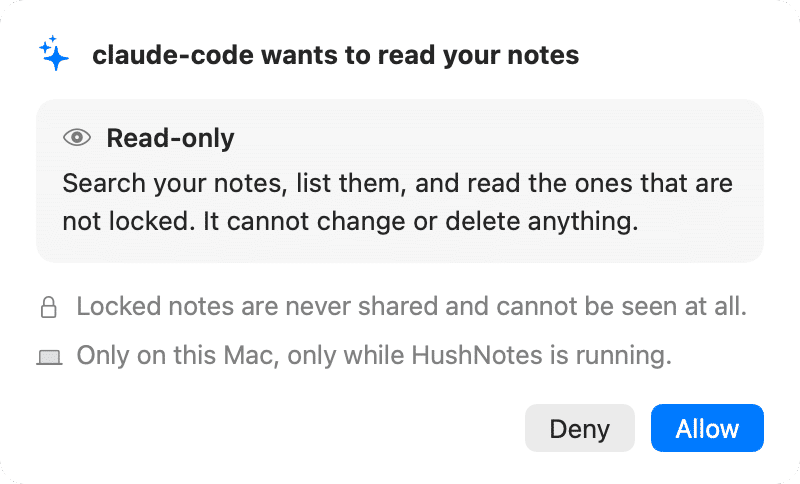
- ↩Return allowsOr click Allow. The tool is remembered by name.
- escEsc deniesOr click Deny. The tool gets nothing.
- 50sNo answer, nothing sharedAfter 50 seconds the card goes away by itself. Nothing is shared, and the tool can ask again.
- Wider access asks againIf the tool later wants more, the card comes back: "claude-code now wants to create notes too".
Read-only by default.
Writing is a choice you make.
There are two levels, Read and Read and write, under They can in Settings › Connections. Neither one can change a note that already exists.
| What a tool can do | ReadDefault | Read and writeOpt in |
|---|---|---|
| Search your notes | ||
| List them | ||
| Read unlocked notes | ||
| Create new notes | ||
| Edit or delete a note | ||
| See locked or deleted notes |
Locked notes are never shared. A connected tool cannot see them at all.
What local-only means, and what the tool you connect still sendsChange your mind
at any time.
All three are in Settings › Connections.
If it doesn't work.
Five things that go wrong, written the way they look from your side.