If you want to write something down on your Mac without creating an account first, you have more choices than the app stores suggest. Stickies ships with macOS and asks for nothing. Apple Notes works locally and only reaches the network when you sign it into iCloud. Editors that keep plain files in a folder you chose, Obsidian among them, need no account to open that folder. And there are paid apps that never had a sign-in screen at all.
The harder part is not finding them. It is judging the claims, because "local-first", "private", and "offline" get used for at least three different things, and knowing which one an app means changes what you should expect from it. This piece separates those, shows you how to check any app's claim yourself in about fifteen minutes, and is honest about what you take on when you drop the account.
The three questions people fold into one
Ask them separately and most confusion goes away.
Does it need an account
An account means an identity held by the maker: an email address, a password, a row in their database. It is the thing that decides whether you can open the app at all, and it is the thing that can be locked out, reset, deprovisioned, or priced.
An app with no account cannot lock you out, because there is nothing to lock. It also cannot help you get back in, because there is nothing to recover. That trade is the whole of it.
Note what an account does not tell you. Plenty of account-free apps still make network requests, for updates, for licence checks, for crash reports. And an app can require an account purely for payment while storing every byte on your disk. The account question is about identity and gatekeeping, not about where your words live.
Does it sync through someone's server
This is the question most people actually mean, and it has three common answers.
- Nothing leaves. The app writes to your disk and does not transmit your content anywhere. Any copy on another machine is one you made.
- It syncs through a service you already have. iCloud, Dropbox, a folder you control, a Git remote you chose. Your content leaves your Mac, but to somewhere you already decided to trust, and usually with your other files.
- It syncs through the maker's own service. Your content is on their infrastructure. That can be encrypted so they cannot read it, and it can be excellent, but the copy exists and the company holds it.
None of those is wrong. They are different risk shapes, and the only real mistake is not knowing which one you bought.
Can you open the files yourself
The last question is the one that decides what happens if the app goes away, and it is the one fewest people check before they have five years of notes.
Some apps write plain text or Markdown into a folder you picked. You can open those with anything, back them up with anything, and grep them from a terminal. Some write a database file: fast, good at search, and readable with the right tools but not with a text editor. Some write an opaque format that only the app understands.
A plain-file app gives you the strongest guarantee and the weakest features, because everything past text has to be encoded somewhere. A database app gives you speed and structure and asks you to trust its export path, or its longevity, or both. Decide which you want deliberately rather than by accident, and be aware that "local-first" is frequently used to answer this question when the app only really answers the first one.
How to check any app's claim yourself
You do not have to take anybody's word for this, including ours. Five checks, roughly in order of effort.
- Turn the wifi off and use the app for ten minutes. Make notes, edit them, search them, quit and reopen. Anything that breaks or spins was going to the network. This is crude and it is by far the most informative single test.
- Watch it in Activity Monitor. Open the Network tab and find the app's process. The Sent Bytes and Received Bytes columns tell you whether it is talking while you type. Let it sit idle for a while and look again, because background traffic is the interesting kind.
- Run an outbound firewall. Little Snitch and the free Lulu both intercept outgoing connections and ask you to allow or deny each one, by app and by destination. Nothing else gives you the same view: you see the hostname, and you see how often. An app that claims to be local and asks for one update check a day looks exactly like that in the log.
- Look in the Application Support folder. In Finder, hold Option and open the Go menu, then choose Library, then Application Support. An app that stores locally will have a folder there, or in Containers if it came from the App Store. Look at what is inside: a database file, a folder of Markdown, an opaque blob. You now know the answer to the third question.
- Read the App Store privacy label. Every App Store listing carries one, and "Data Not Collected" is a statement the developer is accountable for. It is not a substitute for the other checks, and it says nothing about an app distributed outside the App Store, but it costs you fifteen seconds.
Two cautions. First, a single network request is not a scandal: update checks, licence verification, and font or map downloads are ordinary and usually disclosed. What matters is whether the app tells you what each request is for and whether you can switch it off. Second, an app that phones home only on first launch will look perfectly quiet in your firewall log a week later, so run these checks early rather than late.
What you give up without an account, and how to cover it
Being honest about this is more useful than pretending there is no cost.
| What an account usually buys | What you lose without it | How to cover it |
|---|---|---|
| Sync between your devices | Notes live on one Mac | Keep the store in iCloud Drive or Dropbox if the app supports it, or use an app whose sync rides a service you already own |
| A web or phone client | No access away from the machine | Decide in advance which notes need to travel, and keep those somewhere that travels |
| Recovery when a disk dies | Nothing to restore from | Time Machine, plus one copy that is not in your house |
| Recovery when you forget a password | Nothing to reset | Keep the licence key and any note passphrase in a password manager |
| Sharing a note with somebody | Manual copies | Paste it into the thing you already use to talk to that person |
| Version history | Only what the app keeps locally | Time Machine snapshots, or a folder under version control if the app writes plain files |
The pattern is that each loss has a cover, and every cover is something you configure once. The uncomfortable one is recovery, and it is uncomfortable because it is genuinely on you. An account is, among other things, an off-site backup with a support desk attached. Drop it and you need to build that yourself, which the last section is about.
One-time purchase against a subscription
This is a longevity question rather than a price question, and both models have a failure mode.
A one-time purchase is a copy of the software that keeps working. If the maker stops shipping updates, the version on your disk still opens tomorrow, and it keeps opening until an operating system release breaks it. That is the real clock on a one-time purchase: not the company's interest, but the platform moving underneath. For a small native app that mostly uses stable system frameworks, that clock runs slowly. The risk you carry is that nobody is being paid to follow the platform, so a future macOS release can end the app quietly.
A subscription funds continuous work, which is why the apps with the fastest release cadence tend to have one. The risk is different in shape rather than in size: when you stop paying, you may keep read-only access, you may keep nothing, and the answer varies by product. If your notes live on the maker's servers, the subscription is also what keeps them reachable.
Things worth checking before you commit either way:
- What happens to your notes if you stop paying, or if the app stops being updated.
- Whether a licence covers more than one Mac, and how you move it when you replace a machine.
- Whether the app needs the network to start. An app that validates a licence on every launch is an app that can fail on a plane.
- Whether you can get your content out in a format something else can read.
The comparison page at /compare/ sets the common Mac note apps side by side with sources, which is a better place for the product-by-product detail than a paragraph here.
Backups, because local-first puts this on you
An app that never sends your notes anywhere also never has a copy of them. That is the point, and it means the backup is your job. The good news is that a local-first app is the easiest kind of thing to back up, because it is just files on your disk.
The habit worth having
- Turn on Time Machine and let it run hourly. It covers the Application Support folder along with everything else, so it covers your notes whether or not the app has any backup feature of its own.
- Keep one copy off the machine. An external drive that lives at the office, or an encrypted backup service. A Time Machine disk sitting next to the Mac protects you from a disk failure but not from the flat burning down or the bag being stolen with both in it.
- Know which folder matters. Find the app's folder in Application Support or Containers once, and write the path down. When you migrate to a new Mac or need to pull one note out of a backup, that saves you an hour.
- Restore something once, on purpose. Pick a note, delete it, and bring it back from the backup. A backup you have never restored from is a belief rather than a fact. This is the single most skipped step and the only one that proves the rest.
If the notes matter to somebody else too
Work notes have a second problem: they are useless to your team if they exist only on your laptop. The answer is not to abandon local storage. It is to decide, per note, which ones belong in a shared system and to put them there when you write them, keeping the local app for the thinking rather than the record. That boundary is easier to hold than it sounds, and it means an outage on either side never stops you working.
Where HushNotes sits
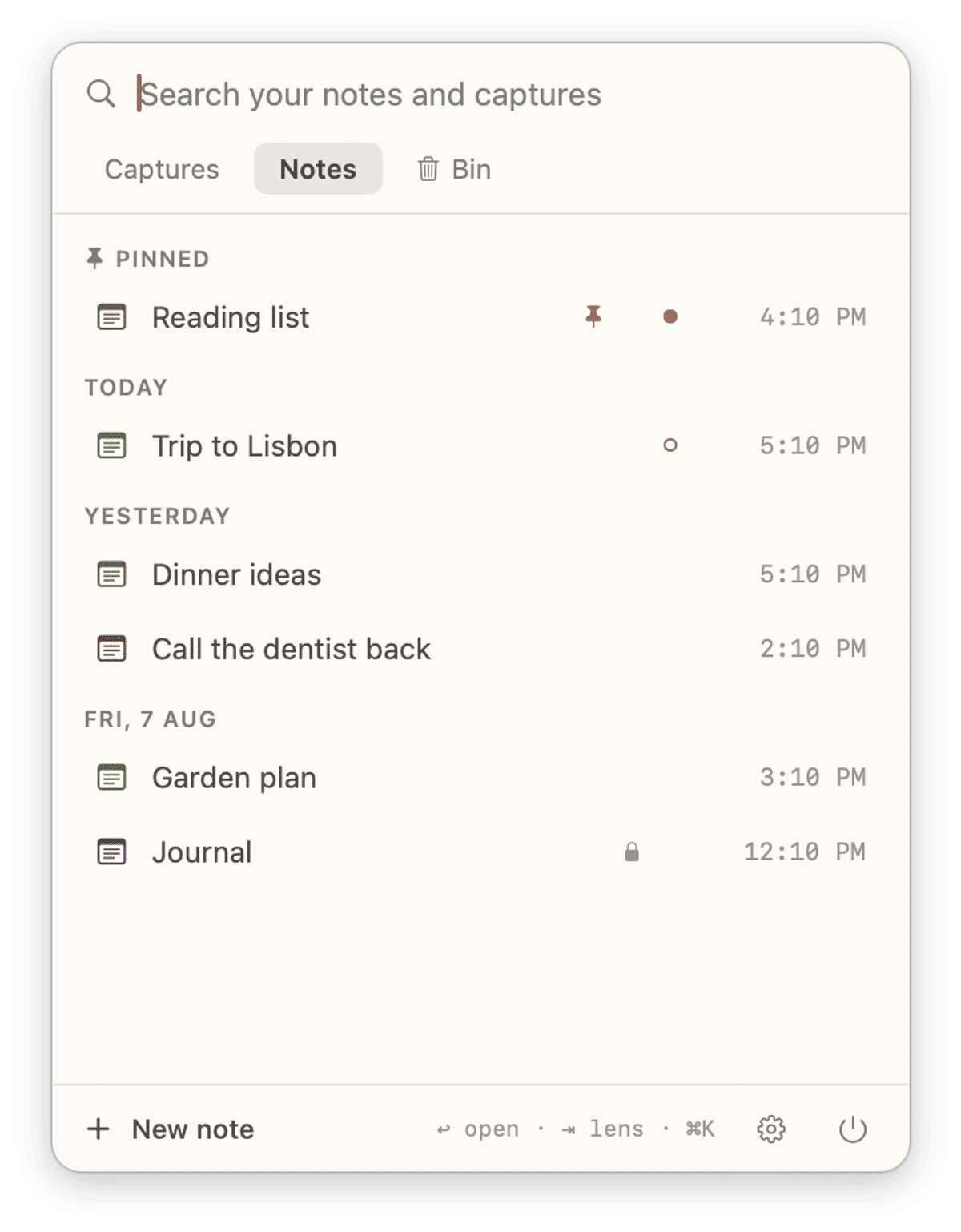
HushNotes answers the three questions like this. There is no account, so there is nothing to sign into and nothing to reset. Notes are written to disk on your Mac before anything else happens, and nothing is sent anywhere, so it works with the wifi off. It keeps its own store rather than a folder of Markdown, which is the trade named above: search is instant and local, and getting content out means copying it rather than opening a file in another editor.
Exactly two outbound requests exist, and both are explainable. Activating a licence key sends one request carrying the key and this Mac's name. An update check makes a single anonymous request at most once a day, and you can switch it off in Settings. After activation the app verifies a sealed local record rather than phoning home on launch. It asks for no Full Disk Access, no camera, no microphone, no contacts, and no location, and its App Store privacy label is Data Not Collected. Run the firewall check above and that is what you will see.
It is $9.99 once, and one licence activates up to three Macs at a time. The site sells the direct download. If you want the tools you already run to read your notes, there is a local endpoint for that: it listens only on your own machine, it is off until you turn it on, each tool is allowed by name, access is read-only by default, and locked notes are filtered out before anything is served. That is the opposite shape from an account, and it is the part most worth reading about next on the notes for agents page.
Was $14.99 now $9.99, pay once · macOS 14 or later