
To save terminal output on a Mac, pipe it to a file with command 2>&1 | tee build.log, or put
it on the clipboard with command 2>&1 | pbcopy. To keep something already on screen, Terminal has
Export Text As (⌘S) and Export Selected Text As (⇧⌘S). For a stack
trace or a snippet you want to find again next week, with a record of where it came from, a
capture key that writes the selection to a searchable note is the quickest route.
Which one is right depends on whether the output has happened yet, and whether you need it in ten seconds or ten days. For selected text in general, from a browser or a mail client, see how to save selected text from any Mac app. This post is the developer's version.
How do you save terminal output to a file before you run the command?
Redirect it when you start the command. command > build.log 2>&1 writes both standard output and
standard error to a file, and command 2>&1 | tee build.log does the same while still showing
every line on screen. Add -a to tee to append to a running log instead of replacing it.
# Save stdout and stderr to a file, and see nothing on screen
npm run build > build.log 2>&1

# Save it AND watch it scroll past
npm run build 2>&1 | tee build.log

# Append to a running log instead of replacing it
npm run build 2>&1 | tee -a ~/logs/build.log
The 2>&1 is the part people forget. Most errors are written to standard error, not standard
output, so > build.log on its own gives you a file with the progress lines and none of the
failure. With 2>&1 both streams go to the same place, in the order they were written.
tee is the better default because it hides nothing: you watch the build, and when it fails the
run is already on disk. The limit is that you decide before you press Return, and the error worth
keeping is usually the one you did not expect.
How do you copy terminal output to the clipboard with pbcopy?
Pipe it into pbcopy. macOS ships pbcopy and pbpaste, which read and write the general
pasteboard, the same one ⌘C and ⌘V use.
# Put a command's output, errors included, on the clipboard
swift build 2>&1 | pbcopy

# Put a file on the clipboard
pbcopy < Sources/Plot.swift

# Write whatever is on the clipboard into a file
pbpaste > ~/scratch/error.txt

# Add the clipboard to the end of a running notes file, with a timestamp
{ date; pbpaste; echo; } >> ~/scratch/errors.md
That last line is a perfectly good low-tech capture system. Its weaknesses are the clipboard's: it holds one thing, the next ⌘C replaces it, and nothing records where the text came from.
How do you record a whole terminal session?
Use script, which ships with macOS. script -q ~/logs/session.txt writes everything printed in
the terminal to that file until you type exit or press Control-D. Put a command after the file
name to record only that command and its output, and add -a to append to an existing file.
# Start recording into a file; type `exit` (or press Control-D) to stop
script -q ~/logs/session.txt

# Record one command and its output only
script -q ~/logs/migrate.txt ./bin/migrate --dry-run

# Add to an existing file instead of replacing it
script -a -q ~/logs/session.txt
-q drops the start and stop banners, -a appends. It is the right tool for a long debugging
session when you do not yet know which part will matter. The file holds the raw terminal stream,
so colour codes come along as escape sequences, and it records any token that was printed. Treat
a session file like the secret it may contain.
How do you save what is already on screen?
Use the terminal's own export. In Terminal, Export Text As (⌘S) saves the window's text and Export Selected Text As (⇧⌘S) saves only the selection. In iTerm2, Shell › Save Contents saves the whole session to a file, and Edit › Select Output of Last Command selects the last command's output for you to copy or capture.
Terminal. Both export commands are in Apple's list of Terminal shortcuts. By default, Terminal marks prompt lines when you press Return (the setting is Edit › Marks › Automatically Mark Prompt Lines), and Apple's guide says marks enable "selecting and copying command output". Select Between Marks is ⇧⌘A.
iTerm2. Session › Log › Log to File also saves what the session receives to a file on disk. Select Output of Last Command needs iTerm2's shell integration installed.
Both suit the "I need the whole scrollback" case, as long as you decide where the files go.
Does clipboard history help?
Yes, for the short gap. In macOS Tahoe, Spotlight can search your clipboard history: press ⌘Space, then ⌘4 or click the Clipboard button. Apple's guide notes that sensitive information may appear there, and that you can erase it with Clear History. Third-party clipboard managers do the same job with more control over what they keep.
Clipboard history is a safety net, not a filing system. It is excellent for a command you copied an hour ago, and weaker for a stack trace you want to compare against next Tuesday's, because history is ordered and pruned by time.
When is a snippet manager or a gist the right answer?
When the code is a keeper: a deploy incantation, a regex you finally got right. Dedicated snippet managers organise code by language and folder and highlight syntax. They are the right home for a curated library, and a heavy one for an error you will look at twice.
A gist is the developer's other reflex, and the GitHub CLI makes it one command:
# Make a secret gist from the clipboard
pbpaste | gh gist create --filename error.txt -
GitHub's own documentation says secret gists are not private: anyone with the URL can see one. Fine for sharing with a colleague; not fine for a stack trace with a customer's email or an access token in it.
Which option fits which job
| You want to keep | Best fit | Why |
|---|---|---|
| Output of a command you are about to run | tee, with 2>&1 |
You still see it, and it is on disk if it fails |
| Output you need to paste somewhere in a moment | pbcopy |
Fastest, nothing to clean up |
| A long debugging session | script |
Records everything, no decisions needed up front |
| What is already in the scrollback | ⌘S in Terminal, Save Contents in iTerm2 | Gets the whole window out |
| Something you copied an hour ago | Clipboard history | It is already there |
| A snippet you will reuse for months | A snippet manager | Built for curation and syntax |
| Code you want to share by link | A gist | One command, but anyone with the link can read it |
| An error or snippet you want to find again, with its source | A capture key into notes | One chord, no app switch, searchable later |
How do you capture a terminal error without switching apps?
Select it and press one key. That is the gap the options above leave: keeping a few lines without leaving the terminal, naming a file or overwriting your clipboard.
In HushNotes the chord is ⌥⇧Space, and you can rebind it in Settings.
- Select the error, the command or the snippet in Terminal, iTerm2 or your editor.
- Press ⌥⇧Space. A small capsule confirms the capture, with Undo for a moment.
- Keep working. Nothing opens and focus stays in the terminal.
Where the text lands depends on what is open. If a note is open on screen, the text is appended to it. If no note is open, the text is kept as a capture on its own in the Shelf's Captures list. Hold ⌘ as you capture and it becomes a new note instead.
What it reads, and what it needs
HushNotes reads the selection through the macOS Accessibility API, asking the front app's focused text element for its selected text. Nothing is simulated and your clipboard is not touched. That read needs HushNotes to be allowed under System Settings › Privacy & Security › Accessibility. If the permission is missing when you press the chord, HushNotes asks macOS to show its permission prompt, or, if macOS has already been asked once, shows its own explainer with a way to System Settings.
Terminal and iTerm2 normally share their selection this way, and if one does not, the Services item Capture in HushNotes below is the route. Some apps do not share it at all. Electron apps, which include VS Code, and some PDF viewers and terminals may report a focused element with no selected text. HushNotes does not guess or fall back to copying. The capsule says Nothing captured and, on the second line, This app won't share it. Use its Services menu.
That Services item is the fallback. In apps that offer the Services menu for text, right-click the selection and choose Services › Capture in HushNotes. It hands the text over directly rather than through Accessibility, and you can give it a keyboard shortcut in System Settings › Keyboard › Keyboard Shortcuts › Services. If an editor offers neither, copy and paste is the honest answer.
What a capture keeps
A capture keeps the text, the name and icon of the app it came from, and the time. That is enough to tell the error you saw in iTerm2 on Tuesday from the one you captured in Slack on Thursday.
It does not keep the file path, the working directory, the window title, or a page address if you captured from a browser. If you need the file and line, they are usually inside the stack trace already. If you would rather it did not keep the app, turn off Remember where a capture came from in Settings › Note.
Can a note hold a code block?
Yes. A HushNotes note's body is Markdown, and fenced code blocks are drawn in a monospaced font,
with inline code spans too. There is no syntax colouring, and a language tag after the fence is
kept but not used for highlighting.
The editor also leaves code alone while you type and paste: smart quotes, autocorrect and system
text replacement are all switched off, so a pasted " stays a straight quote.
One detail worth knowing. A capture arrives as plain text, not as a code block. So that a
captured line starting with #, -, $ or 1. stays text instead of becoming a heading or a
list, HushNotes puts a backslash in front of that marker in the note's Markdown source. When you
want a snippet as a fenced code block, type the opening fence, paste the code with ⌘V, then close
the fence.
How do you find a saved error again?
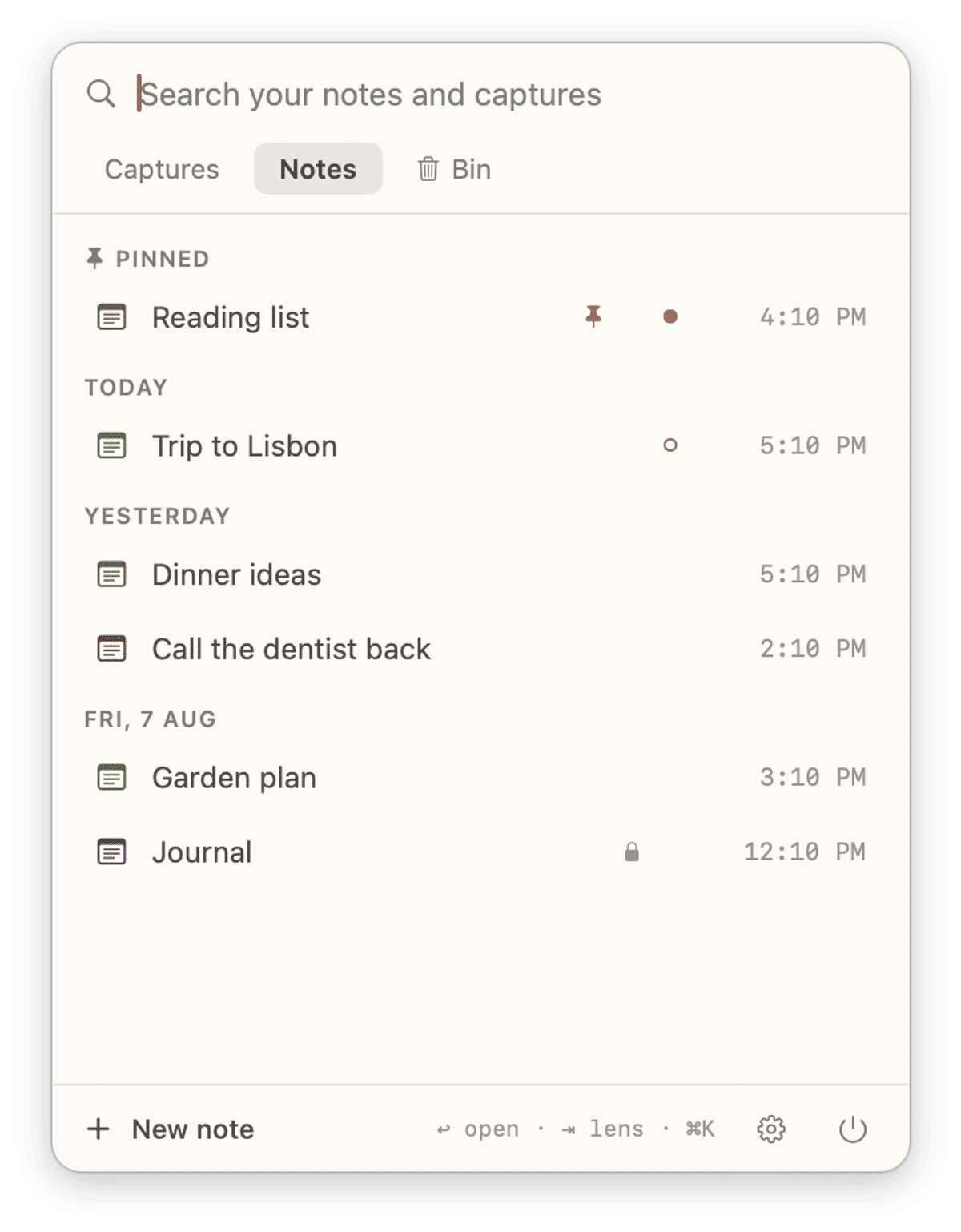
Open the Shelf with ⌥⇧S and type. The search field is focused the moment it opens, and the search
covers notes and captures together. It is keyword search, not semantic: it matches the words you
type against note titles and text, and for captures against the captured text and the name of
the app it came from. So Cannot find 'Axis' finds the error, and iTerm finds everything you
captured from iTerm2.
Select a capture and press Return to see it in full, with its time and a Copy button that puts it back on the clipboard, ready to paste into a terminal or an issue.
If the error contains something you would not want an external tool to see, lock the note. On the Shelf a locked note matches by its title only, and it is left out of MCP entirely.
Can Claude Code or Cursor read the error from your notes?
Yes, if it is in a note. HushNotes runs a local MCP server on your Mac, off by default, that tools like Claude Code and Cursor can connect to. Turn on Let external tools read your notes (MCP) in Settings › Connections and copy the URL shown there. For Claude Code that is one command:
claude mcp add --transport http hushnotes "http://127.0.0.1:48219/mcp/YOUR-TOKEN"The first time a tool connects, HushNotes shows a card with the tool's name and asks you to Allow or Deny, so approval is per tool. The tools can search, list and read notes. With Read & write access they can also create a note. They can never edit or delete one, and locked notes are left out. The MCP setup page has the steps for Claude Desktop, Codex and Cursor, and reading Mac notes from Claude or Cursor over MCP walks through it in more detail.
The catch is the Captures list. MCP reads notes, not standalone captures. If you want your agent to see a stack trace, capture it into an open note, or hold ⌘ while capturing to make it a new note. Then you can ask Claude Code to "read my note about the build error and fix it", and it reads the note's Markdown as stored, backslashes included.
What HushNotes does and does not do here
HushNotes keeps a selected error, command or snippet with one chord, records the app and the
time, finds it with keyword search, and lets local tools read notes over MCP. It is not a snippet
manager: no folders by language, no tags, no syntax colouring, no export. It does not record
sessions, which is still script and tee's job, and it cannot read a selection from an app that
will not share one.
For the full capture behaviour, with screenshots, see instant capture.
How we checked (October 2026): HushNotes behaviour comes from the app's source code, not from
a live capture test. Terminal and Spotlight details come from Apple's own guides, iTerm2 details
from iTerm2's documentation, script options from its macOS manual page, and gist privacy from
GitHub's documentation.
FAQ
Does capturing with ⌥⇧Space change what is on my clipboard? No. HushNotes reads the selection through the macOS Accessibility API instead of copying it, so whatever you last copied stays on the clipboard.
Does script record a password I type at a prompt?
Not by default. The macOS manual page says script records everything printed on your terminal
and logs the keys you type only with -k, so a prompt that hides your typing keeps the password
out of the file. Anything the program prints, such as a token, is still recorded.
Why does a capture key do nothing in VS Code? VS Code is built on Electron, and Electron apps may not hand their selection to the Accessibility API. HushNotes says Nothing captured rather than guessing. Use the Services item where the app offers it, or copy and paste.
Is a secret GitHub gist private? No. GitHub's documentation says anyone with the URL of a secret gist can see it. Keep stack traces with credentials or customer data out of gists.
Can Claude Code read a stack trace I captured? It can read it once it is in a note, through HushNotes' local MCP server. Standalone captures in the Shelf's Captures list are not exposed over MCP.