
Before you share your Mac screen, decide whether to share one window or the whole display, set notifications to stay off while you share, and clear anything private from the places a share reaches: open apps, the browser, the menu bar, the desktop, the clipboard and the room behind your camera. Then run a test share and look at it from the other side. Each step below names the exact setting on macOS Tahoe 26. Most of them you set once; the rest take a couple of minutes before each call.
There is a short version to print at the end. For what each sharing mode exposes and why, read what others see when you share your Mac screen; this piece goes straight to the settings.
Apple moves and renames settings between releases, so if a path differs on your Mac, type the setting's label into the search field at the top of System Settings.
What should you set up once, before any call?
Six settings protect every call once they are set: turn notifications off while you share, make notification previews say less, schedule Do Not Disturb to start with your conferencing app, prune the apps allowed to record your screen, thin out the menu bar, and hide the files on your desktop. All six live in System Settings, and they keep working on the call you forgot to prepare for.
1. Turn notifications off while you share
macOS has a setting that pauses notifications whenever the display is being mirrored or shared. Apple's own description is that with it off, "others can't see notifications on your computer when, for example, you are giving a Keynote presentation."
Where: System Settings › Notifications. In the Notification Center section, find when mirroring or sharing the display and choose Notifications Off. Older versions of macOS labelled it "Allow notifications when mirroring or sharing the display" as a single switch; on those, turn it off.
It is the most useful single setting on this list, and it still deserves a test (item 13), because whether your conferencing app's capture counts as "sharing the display" is something you confirm rather than assume. Source: Change Notifications settings on Mac.
2. Make notification previews say less
A banner that names an app is a small disclosure. A banner that quotes the first line of a message is a large one. Previews are your fallback for the day items 1 and 3 do not catch something.
Where: System Settings › Notifications › Show previews, set to When Unlocked or Never. That choice becomes the default for every app. To tighten one app further, go to Application Notifications, click the app, and set its own Show previews.
While you are in an app's page, look at Badge application icon. If your Dock is visible during a display share, a badge tells everyone how many unread messages you have in that app.
3. Set Do Not Disturb to turn itself on
Focus stops new notifications being delivered at all, a different layer from item 1. The reliable version is one you do not have to remember.
Where: System Settings › Focus › click Do Not Disturb (or a Work Focus) › Add Schedule. Apple lets a Focus turn on at set times, at a location, or when you open certain apps, so pick your conferencing app and the Focus starts with the call.
For a one-off, open Control Center in the menu bar, click Focus, then Do Not Disturb.
Inside the Focus, Allowed People and Allowed Apps decide who still breaks through, and Time Sensitive Notifications, under Allowed Apps, lets urgent alerts through, which may be exactly the banner you did not want. Source: Set up a Focus on Mac.
4. Know which apps can capture your screen
Only apps you have allowed to record the screen can share it. The list is short and worth reading once, because every app on it can capture your display.
Where: System Settings › Privacy & Security › Screen & System Audio Recording. Turn off any app that no longer needs it. Source: Control access to screen and system audio recording.
5. Thin out the menu bar
When you share a whole display, the menu bar is in the picture for the entire call: the clock, your status items, and the name of every app you switch to. No per-window setting can remove it, because it belongs to macOS.
Where: System Settings › Menu Bar. Under Allow in the Menu Bar, switch off the apps you would rather not show. Under Menu Bar Controls, Clock Options sets how much of the date appears. If you want the bar out of sight while presenting, Automatically hide and show the menu bar can be set to Always, and it then appears only when you move the pointer to the top. Source: Change Menu Bar settings on Mac.
6. Hide the files on your desktop
File names on the desktop are legible at share resolution, and a window you move during the call can uncover them.
Where: System Settings › Desktop & Dock. Under Desktop & Stage Manager, find Show Items and turn off On Desktop. Apple notes the items are then hidden until you click the desktop to show them. While you are there, glance at your wallpaper in System Settings › Wallpaper: a family photo is a disclosure too. Source: Change Desktop & Dock settings on Mac.
What should you check in the five minutes before the call?
These depend on what you have open today, so run them before each call: share one window if one will do, quit or hide the apps that hold private things, use a clean browser profile with a short tab list, put something harmless on the clipboard, check what the camera sees behind you, find out whether the call is recorded, and test the share with yourself.
7. Choose one window if one window will do
Share a single window and everything else on your Mac is outside the share by construction, including notifications, the menu bar and the desktop. Take the whole display only when the call genuinely moves between apps, as a product tour or a teaching session often does.
Where: in your conferencing app's share picker. Choose the window, not the screen. The trade-offs of each mode, and what leaks at the edges of a window share, are in what others see.
8. Quit or hide the apps that hold private things
Mail, Messages, a password manager, banking, a spreadsheet of salaries, the candidate scorecard for an interview you are running. Focus stops new arrivals; it does nothing about what is already on screen.
Where: with the app in front, ⌘Q quits it and ⌘H hides it. ⌥⌘H hides every app except the one in front. Avoid the app switcher and Mission Control during a display share: both show the far side everything you have open.
9. Use a clean browser profile and a short tab list
A browser carries more history than any other app: open tabs, the bookmarks bar, address bar suggestions, and forms that fill themselves in.
Where (Safari):
- Profiles: Safari › Create Profile, or Safari › Settings › Profiles. Each profile keeps separate history, cookies, extensions, Tab Groups and favourites, so a "Demo" profile starts clean. Open it from the profile button in the toolbar with New [Profile] Window. Source: Use profiles in Safari on Mac.
- Favorites bar: it is switched on and off from the View menu (Apple documents View › Show Favorites Bar). Hide it for the call. Source: Customize the Safari window on Mac.
- AutoFill: Safari › Settings › AutoFill. Turn off what you do not want filling itself in while people watch, such as contact details and credit cards. Source: Change AutoFill settings in Safari on Mac.
- Private window: File › New Private Window, for a session that does not suggest your history as you type. Source: Browse privately in Safari on Mac.
Other browsers have their own profile switcher and bookmarks bar toggle; the principle is the same. Then close every tab the call does not need.
10. Put something harmless on the clipboard
The clipboard is a leak when you paste into a shared document or the meeting chat and the wrong thing comes out. Copy a neutral word before you start.
On macOS Tahoe, Spotlight also keeps a clipboard history: press ⌘Space, then ⌘4, and every recent copy is listed. Do not open it on a shared display. To empty it, open that view, click the button to the right of the search field and choose Clear History. Source: Search your Clipboard history.
If you copy things on your iPhone, Universal Clipboard can bring them to the Mac. It rides on Handoff, which lives at System Settings › General › AirDrop & Continuity › "Allow Handoff between this Mac and your iCloud devices."
11. Check what the camera sees behind you
Your camera is the one thing on the call that no screen setting governs: a whiteboard, a monitor over your shoulder, a letter on the desk.
Where: while an app is using the camera, macOS puts a video effects icon in the menu bar. Click it, then Background for a virtual background, or Portrait to blur what is behind you. Apple notes that the options depend on your camera, Mac model and macOS version. Source: Use video effects during a video call.
The surer fix is physical: turn the monitor off, clear the board, move the letter.
12. Find out whether the call is recorded
A recording is a file that can be paused, forwarded and watched months later by people who were never on the call. Ask, and look for your conferencing app's recording indicator. If it is recorded, treat everything above as mandatory.
The same goes for a projector or a TV in a meeting room. Plan as though everything on your screen is on the wall, and before people arrive, walk to the back of the room and check it with your own eyes.
13. Test the share with yourself
Start the meeting, join it from your phone or a second computer, share exactly what you will share on the day, and send yourself a message to see whether a banner reaches the far side.
For a quicker check of a single window, press ⇧⌘3 and open the screenshot: a screenshot travels the same capture path a share does. How a Mac window stays off a screen share explains why, and walks through the full two-minute test.
How do you keep your own notes on screen without sharing them?
14. Put the talk track in a window the share leaves out
Items 1 to 13 keep things out. The harder case is a note you need to read during the call: the demo order, the discount you may offer, the questions for the candidate, the next three points of the lesson.
macOS gives every window a sharing property, NSWindow.sharingType. Set to none by the app that
owns the window, it keeps that window out of screenshots, recordings and screen shares while it
stays on your display.
How to take notes while sharing your screen
weighs this against presenter view, a second monitor and paper, any of which may suit you better.
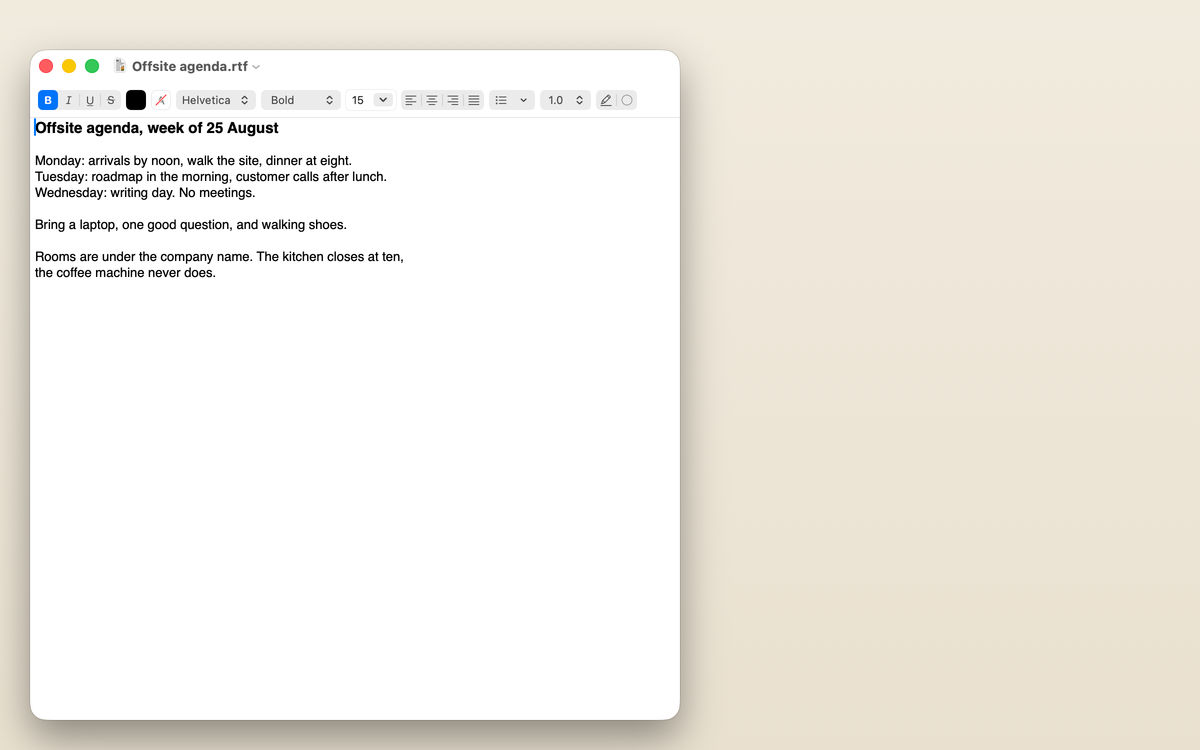
HushNotes is a menu bar notes app that uses Apple's mechanism for its note windows, on by default. The notes float above other apps, full-screen ones included. Three things to know before you rely on it:
- The menu bar icon still shows. It is drawn in a window macOS owns, so it is in the shot when you share a whole display. It holds a small icon and no note content.
- ⌥⇧H is the panic key. It hides every note at once and brings them all back where they were, and it relocks any locked note you had opened. Use it when someone walks up behind you, and before you plug into a projector or a meeting-room TV.
- Your own screenshots leave the notes out too. To capture your notes on purpose, turn off the Screen Sharing switch in HushNotes Settings › Privacy for a moment, then turn it back on.
It is Apple's mechanism rather than ours, so treat it as a strong privacy measure and not a guarantee, and include your notes in the test share from item 13. The screen-share privacy page shows one desk captured twice, once as you see it and once as the call sees it.
The short version (print this)
- Notifications › "when mirroring or sharing the display" › Notifications Off.
- Notifications › Show previews › When Unlocked or Never. Check badges.
- Focus › Do Not Disturb › Add Schedule for your conferencing app. Check Time Sensitive.
- Privacy & Security › Screen & System Audio Recording: only apps you trust.
- Menu Bar › Allow in the Menu Bar: off for anything you would not explain.
- Desktop & Dock › Show Items › On Desktop off. Neutral wallpaper.
- Share one window unless the call needs the whole display.
- ⌘Q or ⌥⌘H the private apps. No Mission Control on a shared display.
- Browser: demo profile, favourites bar hidden, AutoFill off, spare tabs closed.
- Copy a harmless word. Do not open clipboard history (⌘Space, ⌘4) while sharing.
- Camera: look behind you. Background or Portrait from the menu bar video icon.
- Recorded or projected? Be stricter.
- Join from your phone and look. Send yourself a test message.
- Private notes in a window the share leaves out; ⌥⇧H if anyone walks up.
How we checked (October 2026): every macOS setting path and quotation comes from Apple's own macOS Tahoe 26 and Safari guides, linked at each step. HushNotes behaviour comes from the app's source code.
FAQ
What should I hide before screen sharing on a Mac?
Notifications, private apps, browser tabs and bookmarks, desktop files, menu bar items, and anything on your clipboard. Sharing a single window instead of the whole display hides most of these at once.
Where is the setting that stops notifications during screen sharing?
System Settings › Notifications, then when mirroring or sharing the display, set to Notifications Off. Test it with a message from your phone during a share, since conferencing apps capture the screen in different ways.
Does Do Not Disturb hide notifications that are already on screen?
No. Focus stops new notifications being delivered; anything already showing stays. Clear banners and close Notification Center before you share.
Can people on the call see my menu bar?
Yes, when you share a whole display. Remove items in System Settings › Menu Bar, or share a single window, which leaves the menu bar out.
Is a screenshot a good enough test?
It is a good first check, because a screenshot uses the same capture path. Joining your own meeting from another device is the test that settles it.