
You are ten minutes into a shared screen when you need something that must not be shared: the name of the person you are about to mention, the number you are willing to go down to, the three points you promised yourself you would land, or the action item somebody just handed you and you will absolutely forget.
There are seven ways people solve this, and they are not equally good. Presenter view, a second monitor, a phone or paper, an iPad, a capture tool with a cropped scene, sharing a single window instead of your display, and simply closing everything first. Each has a situation where it is the right answer and a situation where it quietly fails. There is also an eighth, built into macOS, where a window stays on your display and never enters the capture at all.
Here is the honest comparison.
The seven things people actually do
Presenter view
Keynote, PowerPoint and Google Slides all offer a presenter display with your speaker notes, the next slide, and a timer, while the audience sees the slides alone.
This is the correct answer when your call is a deck and your private material is speaker notes. It is purpose-built, it is free, and it is already installed.
Where it stops helping is everywhere else. The notes have to be written into the deck ahead of time, so it does nothing for a thought you have during the call and nothing for the action item somebody hands you at minute forty. On a single display, the arrangement usually requires you to share the slideshow window rather than your screen, and if you then need to show something outside the deck, the whole arrangement has to be rebuilt while people wait.
A second monitor
Private material lives on a display you never share. Nothing to configure, nothing to trust, and you can put anything there: a document, a browser, a whole second workflow.
It is the right answer when you have the desk for it and you always work at the same desk. It is also the answer that fails in the most human ways. Mirroring gets turned on for a meeting room projector and left on. A conferencing app shows two similar thumbnails and you pick the wrong one. You travel, and the laptop on the train is not the setup you rehearsed. It is worth reading what others see for the specific ways a second display gets absorbed into a share.
The other cost is attention. Reading something on a display off to one side is legible to anyone watching your eyes on camera, which matters more in a negotiation than in a status meeting.
A phone or a notepad
The only option in this list that no software can undermine. Nothing is on your screen, so nothing can leak from it.
It is genuinely the right answer for a short, sensitive call, and for anyone who thinks better with a pen. Plenty of experienced negotiators use nothing else.
The costs are real though. Whatever you write there is not searchable later and has to be typed up or photographed to become useful, which in practice means it often is not. Looking down at a notepad reads differently on camera than looking at your screen. And if you need to paste what you wrote into a message afterwards, you are retyping it.
An iPad
A middle path: notes on a tablet beside the laptop, either in a notes app of its own or as an extended display.
If the iPad is running its own app, the situation is the same as the notepad, with search and typing added. That combination suits a lot of people.
If you are using the iPad as an extended Mac display, understand that you have created a second display, with everything that implies. It appears in the list of things you can share, it can be mirrored, and it is not privileged in any way just because it is a tablet. The privacy comes from your discipline about which display you share, exactly as with a monitor.
A capture tool with a cropped scene
Broadcast software can compose a scene from selected sources and publish the result as a virtual camera or a projector window, and you share that instead of your screen. Anything you leave out of the scene is not in the output.
For a stream, a recorded tutorial or a rehearsed webinar, this is a strong answer and often the professional one. You get exactly the frame you designed.
For an ordinary meeting it is a lot of machinery. There is setup to do before every call, a scene to keep in sync with what you actually intend to show, additional load on the machine, and one more piece of software between your screen and the people watching. Crops also depend on geometry holding still: a window that moves, a resolution change, or a system alert placed where the system likes can put something inside a rectangle you meant to keep outside it.
Sharing a single window instead of the display
Underrated, and free. Choose the one window that the call is about, and everything else on your Mac is outside the share by construction. Your notes can sit anywhere, even directly on top of the shared window, since the share follows the window and not the region of screen it occupies.
The cost is movement. When you switch apps, the people watching do not follow you, so any call that genuinely tours several apps forces you to change what you are sharing mid flight. It is also worth testing how your conferencing app handles a dialog or file picker that the shared app opens, because a separate window is not the window you shared.
When the call is a walk through one document, this is often all you need.
Closing everything first
The default strategy, and more defensible than it sounds. Nothing on screen cannot leak.
It works until the moment you need the thing you closed, which is the exact moment this article is about. It also depends on you remembering, every time, under time pressure, and it does nothing about what arrives during the call.
| Approach | Keeps working when you switch apps | Setup before each call | Fails when |
|---|---|---|---|
| Presenter view | No | Notes written into the deck | You leave the deck, or the thought is new |
| Second monitor | Yes | None, if the desk is fixed | Mirroring, wrong thumbnail, travelling |
| Phone or paper | Yes | None | You need it searchable later |
| iPad as a display | Yes | None | It is treated as just another display |
| Cropped scene | Depends on the scene | Substantial | Geometry moves, or you forget to update the scene |
| Share one window | Not applicable | Choosing the right window | The call has to tour several apps |
| Close everything | No | Closing everything | You need what you closed |
The option that needs no choreography
macOS gives every window a sharing property. When the app that owns a window sets it to none, the system leaves that window out of the picture it assembles for any capture: a screenshot, a recording, or a conferencing app that has been granted Screen Recording permission. The window stays on your display. It is absent from the stream.
That changes the shape of the problem rather than adding another workaround to the list. There is no second display to keep straight, no scene to maintain, no mode to be in, and nothing to close before the call. You can share your whole display, put the note directly over the thing you are presenting, and the far side sees the thing you are presenting. How a Mac window stays off a screen share covers the mechanism in detail, including how to verify it with the screenshot key in about two minutes.
The limits deserve stating plainly, because they are the same limits in every case:
- A camera pointed at your display sees everything. This governs what the system composites for a capture, not the light leaving the glass.
- It has to be a real window. Content drawn inside somebody else's window is not covered.
- A menu bar item cannot be hidden this way, because the menu bar belongs to macOS. When you share a whole display, the menu bar is in the shot regardless.
- It is Apple's mechanism rather than ours, so treat it as a strong privacy measure and not a guarantee, and check it against your own setup before a call that matters.
This is what HushNotes does with every note window it opens. The property is set on by default, no permission is requested and none is needed, and changing the toggle in Settings re-applies the policy to every window the app already owns rather than only the next one. The one disclosed exception is the menu bar icon, which holds a 20pt icon and no note content.
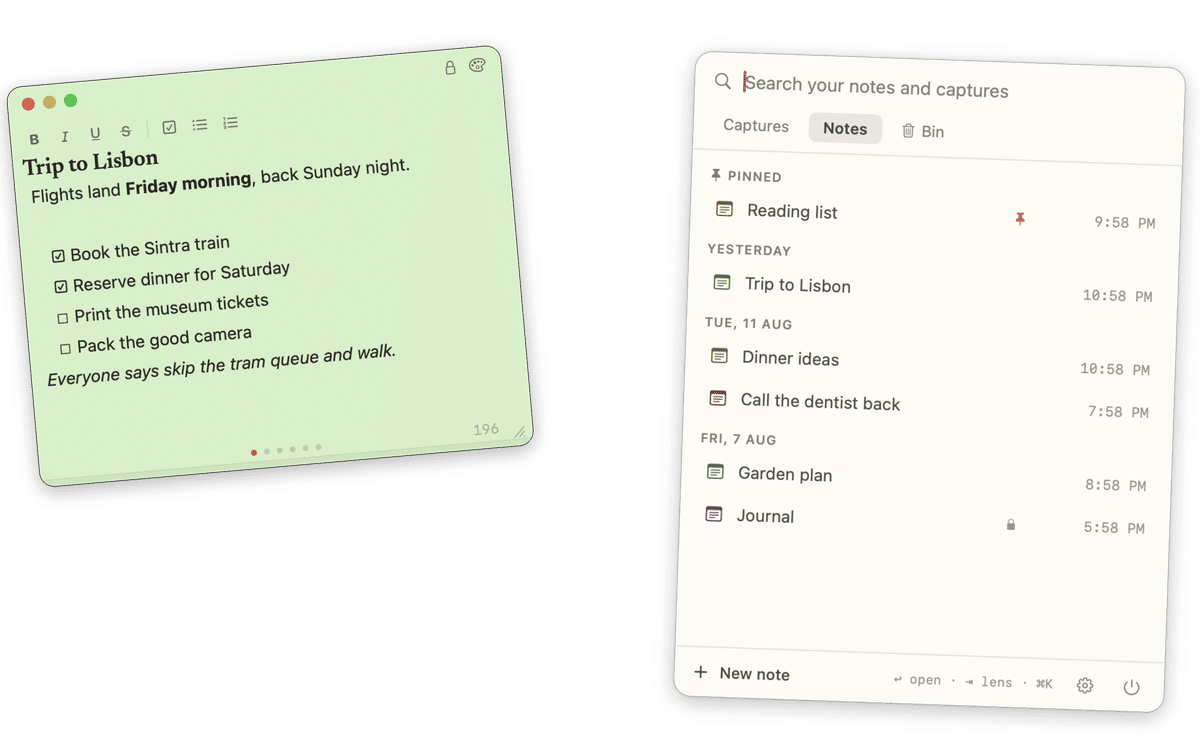
Two details matter more in practice than the property itself. A note window floats above other apps, including full-screen ones, so it does not disappear behind the thing you are presenting. And each note has its own opacity, from ten per cent to full, which fades the paper without fading the ink. On a call, that means you can leave a talk track sitting over the middle of your deck and still read the deck through it.
Capturing the action item without switching apps
Reading something private during a call is half the problem. The other half arrives when somebody says a date, a price, or a name, and you have to catch it while continuing to talk.
Switching apps is the part that costs you. It breaks your attention, and if you are sharing a display, it shows everyone where you went. What you want is for the capture to happen where you already are.
- Press ⌥⇧Space with text selected anywhere on your Mac and it lands in the note you have open. No window opens, nothing takes focus, and a small capsule confirms it for a second with an undo.
- Hold ⌘ while you do it and the selection becomes a new note instead of joining the open one.
- With nothing selected, nothing is captured. A capsule says so. It will not open a typing bar or invent a note, which means the chord is safe to press when you are not certain you selected anything.
- Press ⌥⇧N for a new floating note when the thing you need to record was said out loud and is not selectable anywhere.
- Press ⌥⇧H to hide every note at once, and again to bring them back. The same chord relocks any note you had unlocked.
- Press ⌥⇧S to open the Shelf and search what you kept, by plain keyword, over titles and bodies.
Every capture quietly records the app it came from and the time, and when it comes from Safari or a Chrome-based browser, the page address and title too. That is stored alongside the capture rather than written into your text, so a quote you paste later is the quote and not a footnote. Afterwards, the Shelf files captures under the day they happened, which is usually how you go looking for something somebody said on a Tuesday.
The four chords above are the whole keyboard surface, and each one is rebindable in Settings if it collides with something you already use.
Where to go next
If your question is really about what else is leaking during a call, notifications and the menu bar included, what others see when you share your Mac screen is a checklist you can run in a minute, and the longer screen share checklist names the exact macOS setting for each check. If you want the mechanism rather than the comparison, how a Mac window stays off a screen share explains it and shows you how to test it.
For how this works in HushNotes, the feature pages cover screen-share privacy and instant capture, and the comparison page sets it beside the other Mac notes apps people weigh it against.