
If most of what you write is a line, a number or a reminder you will throw away by Friday, you probably do not need Notion for it. Notion is a workspace for structured, shared and long-lived information: databases, documents and team wikis. A quick note wants the opposite, which is a place that is already open, asks no questions, and gets out of the way.
That is not a case against Notion. Plenty of people need both, and the two fit together well once each does its own job. Below: what Notion is good at, what it costs as a scratchpad, a three-question test for any note, and how the two can share the work.
What is Notion actually built for?
Notion is built for organising many pages and the information inside them, usually with other people. Its own help centre describes the pieces.
- Databases. Notion's help centre puts it plainly: "Databases in Notion are collections of pages." Each item can carry properties, which Notion says you can use "to contextualize, label, and augment any database item with things like dates, status, and links", and the same data can be shown as a table, a board, a calendar, a list, a gallery or a chart (Intro to databases). A reading list, a content calendar, a hiring pipeline: this is the kind of job databases do well.
- Documents and wikis. Notion's guide to company wikis calls the wiki "home to all your company's most important information", built by nesting pages inside pages and noting that "Pages can contain anything, from text to videos to databases" (How to build a wiki for your company).
- Sharing and permissions. The Share button at the top of any page lets you invite people, see who has access, and set each person to Full access, Can edit, Can comment or Can view. Guests outside your workspace can be invited by email, and a Publish tab puts a page on the web (Sharing & permissions).
- Fast formatting as you type. Notion supports Markdown style shortcuts:
#and a space for a heading,[]for a to-do checkbox,**around text for bold (Keyboard shortcuts). - Getting content in and out. You can import Markdown and text files (Import data into Notion) and export a page as Markdown (Export your Notion content).
If your notes will be read by a team, filtered by status or kept for a year, that toolkit earns its place. The question is whether the line you are about to type is one of those notes.
Why does Notion feel like too much for quick notes?
It feels like too much because a workspace asks structural questions a quick note does not need answered. None of these is a flaw; they are the price of the features above, paid whether or not the note uses them.
The app has to be in front of you
On the desktop app, ⌘N makes a new page (Keyboard shortcuts). Command Search (Notion for desktop) can be summoned from the Mac menu bar or a shortcut without bringing the app forward, but Notion documents it as a way to search, not to write. So the usual path for a stray thought is: leave what you were doing, switch to Notion, make a page, type, switch back.
That round trip is short, but it is a context switch, which is exactly what quick notes are meant to avoid. On a call or in a full-screen editor, even a short trip pulls your attention away.
Every page lives somewhere
A Notion page sits in a hierarchy: your private pages, a teamspace, another page or a database. That is what makes a wiki navigable. For a one-line note it becomes a small decision every time: where does this go, does it need a title, should it be a row in the tasks database instead?
Some people keep one "Inbox" page and dump everything there, which works until that page needs structure of its own. Some skip the note because the decision felt heavier than the thought. If you catch yourself doing the second, the tool and the job have drifted apart.
Structure invites more structure
A blank Notion page offers templates, databases, toggles and columns. Notion does not force any of it on you, but a tool designed for structure makes organising feel like the next step, before you have anything to organise. A phone number for a call in ten minutes does not need a status property.
A simple test: what you write, how long it lives, who reads it
Before you choose where a note goes, ask three questions about the note itself, not about the tools.
- What are you writing? A line, a number, a pasted snippet, a short checklist? Or a document with sections, links to other pages and items that share fields?
- How long will it live? Minutes to days, until the call ends or the task is done? Or months to years, as a reference someone will come back to?
- Who reads it? Only you, probably only once? Or other people, now or later?
Read the answers together:
| What you write | How long it lives | Who reads it | Where it fits |
|---|---|---|---|
| A line, a number, a snippet | Hours or days | Only you | A quick note that is already on screen |
| A checklist for the task in front of you | Until it is done | Only you | A quick note, or your task app |
| Research notes linking ideas together | Months or years | Mostly you | A personal knowledge base |
| A spec, a meeting record, a process | Months or years | Your team | A shared workspace like Notion |
| Rows with the same fields: leads, books, bugs | As long as the project | You or a team | A database, which Notion does well |
Sort a week of your own notes this way and you may find that many land in the first two rows, with a smaller, more valuable share in the last three. The mistake is not using Notion; it is sending the first two rows through the same front door as the last three.
Which tool fits which job?
Each kind of tool is good at a different job, and the good ones say so in their own documentation.
A workspace: Notion
Use it for anything shared, structured or long-lived: team documents, wikis, project databases, pages you will publish or send a link to. Its permission levels and database views are the reason to choose it, as described above.
A knowledge base: Obsidian
Obsidian's help says it "stores your notes as Markdown-formatted plain text files in a vault", and that "A vault is a folder on your local file system" (Data storage). Its documentation on links describes linking notes so that "you can create a network of knowledge" (Internal links). That suits notes you mean to keep and connect over years. Its value grows as the notes link together, which is a long game, and a different job from a scratchpad.
Quick capture and floating notes
This is the job of a note that is already there when the thought arrives. On a Mac you have three reasonable options.
- Stickies ships with macOS. Apple describes it as a way to "Keep notes, lists, and even pictures in sticky notes on your desktop", and Window › Float on Top keeps a note in front of other windows (Stickies User Guide). It needs nothing installed and nothing set up. The Stickies comparison covers where it stops.
- Apple Notes Quick Note. Hold the Fn or Globe key and press Q, or move the pointer to the bottom-right hot corner. Apple says Quick Notes let you "jot down ideas and add links, no matter what you're doing on your Mac", that a Quick Note "stays visible on the screen while it's open", and that they collect in the Quick Notes folder in Notes. In Safari you can Control-click selected text and choose Add to Quick Note (Create a Quick Note). If you already live in Apple Notes, this is the lowest-friction option there is. The Apple Notes comparison goes further.
- HushNotes is a menu bar app built around this one job, covered in the last section.
| Tool | Best at | Less suited to |
|---|---|---|
| Notion | Databases, docs, team wikis, sharing | A one-line note in the middle of other work |
| Obsidian | Linked notes kept for years, as Markdown files | Throwaway notes you delete by Friday |
| Stickies | A desktop note with nothing to install | Full-screen apps (not documented) |
| Apple Notes Quick Note | A note from anywhere, filed into Notes | Saving a selection from apps other than Safari (not documented) |
| HushNotes | Floating notes, one-key capture from any app | Anything shared, structured or on iPhone |
Accounts and privacy are a separate question, covered in note apps that do not need an account.
Can you use a quick notes app and Notion together?
Yes, and it is often the best arrangement: jot first, and move the few notes that earn it into Notion later. Notion then gets only what deserves structure or an audience.
A routine that works without any integration:
- Capture without deciding. Write the line wherever it is fastest. Do not title it, file it or format it unless that is free.
- Review on a rhythm. Daily or weekly, read through what you wrote. Most of it has already done its job.
- Promote the keepers. For the few notes that should outlive the week, open the right Notion page or database and paste them in. This is the moment to choose a home, a title and properties, because now you know what the note turned out to be.
- Clear the rest. Delete what was only ever scaffolding.
Being honest about the move from HushNotes to Notion: HushNotes has no export and no integration with Notion, so the move is copy and paste. When you copy text from a HushNotes note, it puts a formatted version and the plain Markdown on the clipboard together, so the app you paste into can take whichever it understands. Notion's help documents Markdown shortcuts as you type and Markdown file import, but it does not document how it treats pasted Markdown, so check a heading and a checklist in your own workspace the first time rather than trusting a promise from us.
When is Notion the right place to jot after all?
Notion is the right place to jot when the jotting is already part of shared, structured work. If the notes are the meeting record, write them on the meeting's page. If an idea is clearly a task in a project you track in a Notion database, add the row now. And if Notion's window is in front of you all day anyway, the context switch above mostly disappears. When the test says "a long time" and "other people", writing straight into the workspace saves a step.
Where HushNotes fits, and where it does not
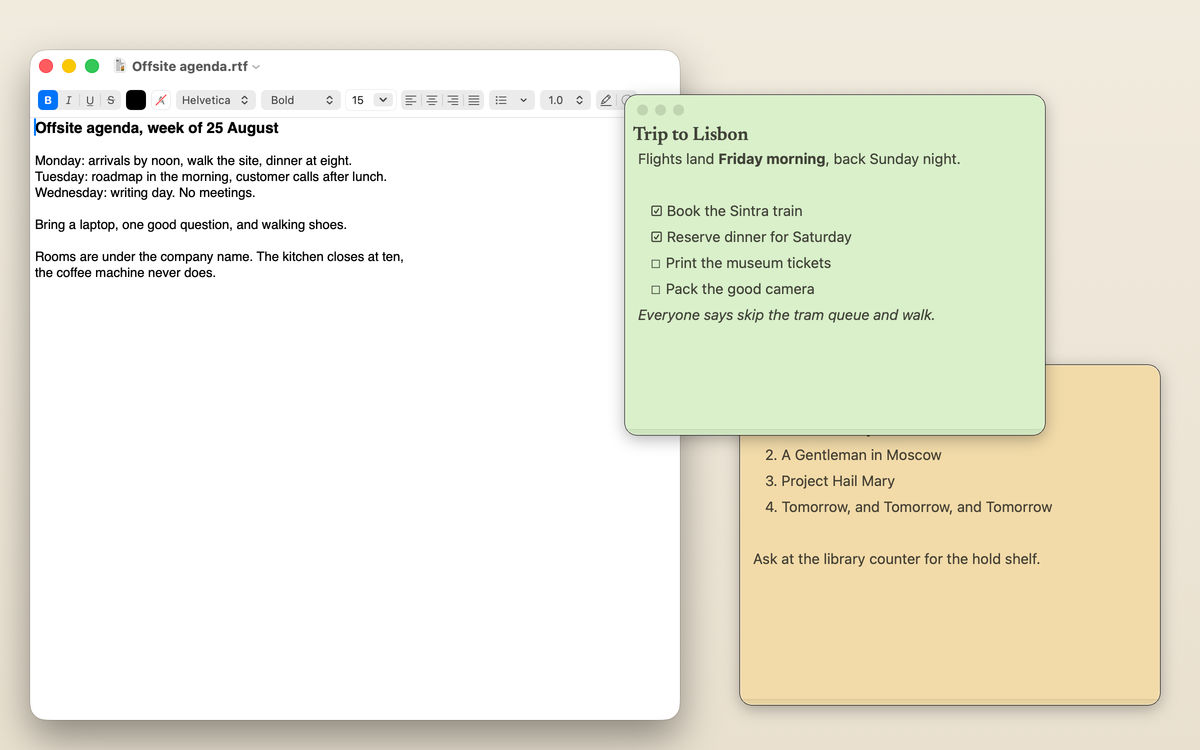
HushNotes covers the first two rows of the test table: short, personal notes that should be on screen the moment you need them.
- No structure to decide. ⌥⇧N opens a new floating note from any app. The first line of the note becomes its name, so there is no title field and no folder to pick.
- It floats. By default, notes stay above your other windows, full-screen apps included.
- Capture from anywhere. Select text in any app and press ⌥⇧Space, and it is added to the end of your open note, and the Shelf's Captures list keeps a copy with the time and, unless you switch it off, the app it came from. The capture page shows how it works.
- Light formatting when you want it. Note bodies are Markdown drawn as you type: headings,
bullets and
- [ ]checkboxes you can tick. - Find it later. The Shelf, on ⌥⇧S, searches titles and text by keyword.
- Hide everything at once. ⌥⇧H hides every note and brings them back where they were. Note windows are also left out of screen shares through Apple's own window sharing setting; the floating notes page has more.
All four shortcuts can be changed in Settings. iCloud sync between your Macs is optional.
What it does not do, so you can decide quickly:
- It is not a workspace. There are no databases, no nested pages, no sharing and no team access.
- There are no tags and no export. Getting a note out means copying it.
- There is no iPhone or iPad app; sync is Mac to Mac only.
- It does not connect to Notion. The route there is the paste routine above.
If the test says most of your writing belongs in a workspace, Notion may be all you need. If it says most of it is quick and personal, a floating note beside your work will feel lighter. Many people land on both. The comparison sets HushNotes beside Stickies, Apple Notes and others, with sources for every cell.
How we checked (October 2026): HushNotes behaviour comes from the app's source code. Vendor facts come from Notion's, Obsidian's and Apple's own help pages.
FAQ
Is Notion too complicated for simple notes?
Notion is not hard to type into, but it is built for structure and sharing: every note lives somewhere in a page hierarchy, and you switch to its window to write. For a one-line note that will be gone tomorrow, that overhead often outweighs the benefit.
What is a simple notes app to use instead of Notion on a Mac?
For quick notes, Stickies and Apple Notes' Quick Note are both built into macOS. A dedicated floating notes app like HushNotes adds notes that stay above full-screen apps and one-key capture of selected text from any app.
Can I move quick notes into Notion later?
Yes. Notion imports Markdown and text files, and you can paste text into any page. HushNotes has no export, so from HushNotes the route is copy and paste.
Should I use Obsidian instead of Notion for quick notes?
Obsidian is aimed at a long-lived, linked knowledge base stored as Markdown files in a folder on your disk. It can hold quick notes, but its strength is notes you keep and connect over time.