
A clipboard manager and a capture tool solve different problems. A clipboard manager quietly records everything you copy, so you can paste something from ten minutes or ten days ago. A capture tool records nothing until you press its key, and then it keeps that one selection in a note, with the app it came from and the time.
The short version: a clipboard manager is for pasting again, and a capture tool is for keeping. Many people want both, and the two work well side by side once you know which job each one is doing.
What does the Mac clipboard do on its own?
The Mac clipboard holds the thing you copied most recently, and copying anything else replaces it. That single slot is what ⌘C and ⌘V have always used, and it is why a quote you meant to keep disappears the moment you copy a link to send someone. The longer case for why the clipboard is a poor place to keep things is in How to save selected text from any Mac app.
Newer versions of macOS add a history on top of that slot, inside Spotlight. Apple's Mac User Guide for macOS Tahoe 26 describes it like this:
- Press ⌘Space to open Spotlight.
- Press ⌘4, or click the clipboard button to the right of the search field.
- The first time, you may be asked to click Enable in Spotlight.
- Type to search your earlier copies, then select one and press ⌘C to copy it again.
To wipe it, click the More button (…) to the right of the search field and choose Clear History.
How long it remembers is a setting in Apple's guide for macOS 27. Open System Settings, click Spotlight in the sidebar, and you will find Results from Clipboard and a choice of 30 minutes, 8 hours, or 7 days. That guide says history older than the timeframe you choose won't be visible in Spotlight, and it puts a Clear Clipboard History button in the same place. The Tahoe 26 version of the page lists only a Clipboard Search switch.
Apple also puts a warning on its clipboard page, in so many words: "Sensitive information may appear on the Clipboard." Keep that sentence in mind for the privacy section below.
So if all you want is the thing you copied an hour ago, a recent Mac may already have it.
What does a clipboard manager actually do?
A clipboard manager watches the clipboard and saves a copy of every item that passes through it. You open its list with a shortcut, find the old item by scrolling or typing, and paste it. Most of them handle more than text: images, files, links and colours are common. The good ones add search, pinned items you reuse often, and rules for what to skip.
Three popular ones, described only by what their own sites say:
- Paste says "Everything you copy is saved, with no limit." Its help pages say it uses iCloud to sync your clipboard history and pinboards across your devices. Pinboards hold snippets you reuse, and you can filter items by content type, source application and date. It is sold as a subscription, and its pricing page also lists a lifetime plan.
- Maccy is free and open source under the MIT licence. It opens with ⇧⌘C by default, and its site says "Everything is stored on your computer."
- Raycast includes clipboard history as one command in a larger launcher. Its manual says it keeps text, images, files, links, emails and colours. You choose how long it keeps history, from one day to three months, and the longer options (six months, a year, unlimited) need Raycast Pro.
What they all do well is the safety net. You never lose a copy to a second copy. If you paste the same few blocks of text all day, such as addresses, replies or commands, a clipboard manager saves real time, and nothing else on this page replaces it.
What they are not built for is deciding what matters. A clipboard history is a log in time order, so your one important paragraph sits between a password, a tracking number and the same link copied twice.
What does a capture tool do differently?
A capture tool saves only what you deliberately send it, and puts it somewhere you organise. You select text, press one key, and the text is written into a note. Nothing happens on the copies you did not mean to keep.
The differences that follow from that:
- It is deliberate. There is no background recording. If you never press the key, the tool holds nothing.
- It lands in a note, not a list. You can keep adding to the same note as you read, write around the quotes, and come back to it as a document.
- It keeps context next to the text. A capture tool can record which app you were in and when. Some clipboard managers record the source app too, as Paste does, so the real difference is that the capture sits in a note you chose rather than in a feed of everything.
- It can leave your clipboard alone. A capture tool that reads the selection directly, rather than faking a copy, does not touch what you had on the clipboard.
The trade is that a capture tool will not save you from the copy you forgot to keep. If you copied something an hour ago and did not capture it, only a clipboard history can give it back.
What does a clipboard history record, and what does it skip?
A clipboard history records whatever you copy, unless something tells it not to. That includes passwords, two-factor codes, card numbers and API keys, because all of those pass through the clipboard on their way somewhere else. A copy that used to vanish with the next copy now sits in a list, often for days.
There is a convention that helps. The pasteboard markers documented at nspasteboard.org let an
app flag what it puts on the clipboard: org.nspasteboard.ConcealedType marks content that "should be
treated as confidential", and org.nspasteboard.TransientType means the content is only there for
a moment.
Password managers can add these markers, and clipboard managers can choose to respect them.
Here is what each tool documents about this, in its own words or settings:
- Maccy ignores the concealed, transient and auto-generated markers by default, and its site says "If your password manager removes a copied password from the clipboard, so will Maccy."
- Paste, under Paste Settings › Privacy, has options not to save passwords and sensitive data when detected, not to save temporary data from other apps, and an Ignore Applications list. Its help pages warn that some password manager browser extensions copy in a way Paste cannot detect, and suggest copying from the desktop app or ignoring the browser. The exclusions are Mac only.
- Raycast keeps a list of disabled applications whose copies are never recorded, and says Passwords and Keychain Access are on it by default so that "sensitive values" stay out of your history. You can add your own, such as a password manager or a banking app. Its feature page says passwords from password managers are ignored by default and history is encrypted on your drive.
- Spotlight's clipboard history in macOS: Apple's guide does not say whether it skips concealed items. It says only that sensitive information may appear, and gives you the retention setting and the clear button.
If you run any clipboard history, three habits are worth the minute they take:
- Open its privacy or exclusion settings and confirm your password manager is covered, either by the concealed marker or by name.
- Choose the shortest retention you can live with. A history you only use for "what did I copy this morning" does not need to keep a year.
- Clear it after handling anything you would not want on screen, such as a recovery key.
A capture tool sidesteps most of this by design: it only holds what you selected and asked it to keep, so a password does not end up in it by accident.
Do I need a clipboard manager on a Mac?
You need a clipboard manager if you often lose a copy by copying something else, or if you paste the same handful of things many times a day. If neither describes you, Spotlight's built-in clipboard history may already be enough for the occasional "where did that go".
You need a capture tool if you collect text to use later: research quotes, error messages, figures from a report, lines from a chat you will want next week. The test is whether you will want to find it after the clipboard history has moved on, and whether you will want to know where it came from when you do.
Clipboard manager or capture tool: side by side
| Spotlight clipboard history | Clipboard manager | Capture tool | |
|---|---|---|---|
| What gets saved | Every copy, while the setting is on | Every copy, minus what its rules skip | Only what you capture |
| How long | 30 minutes, 8 hours or 7 days on macOS 27 | Set by you, up to unlimited in some | Until you delete it |
| Where it ends up | A list in Spotlight | A list or pinboards | A note, or a list of captures |
| Source app kept | Not documented | In some, such as Paste | Yes, in the ones built for it |
| Risk of saving a password | Apple warns sensitive data may appear | Depends on its exclusion rules | Only if you select it and press the key |
| Touches your clipboard | It is the clipboard | It is the clipboard | Not if it reads the selection directly |
| Best at | Getting back a recent copy | Pasting things again, fast | Keeping things to read and use later |
Can you use a clipboard manager and a capture tool together?
Yes, and it is a sensible pairing because they do not compete for the same moment. The clipboard manager handles the short loop of copy and paste. The capture tool handles the long loop of keep and find.
A setup that works:
- Keep your clipboard manager on its usual shortcut (for example ⇧⌘C in Maccy, or ⌘4 in Spotlight) for pasting earlier copies.
- Give your capture tool its own chord that does not clash. In HushNotes that is ⌥⇧Space.
- When something is worth keeping, capture it rather than copying it. It goes into the note and your clipboard keeps whatever it had.
- When you need a captured passage in another app, copy it out of the note. Your clipboard manager records that copy like any other.
- Set the clipboard manager's retention short. Anything you meant to keep is already in a note, and a short-lived history is the safer way to run one.
How HushNotes handles capture
HushNotes is a capture tool and a notes app, not a clipboard manager. It does not watch the clipboard and it keeps no clipboard history.
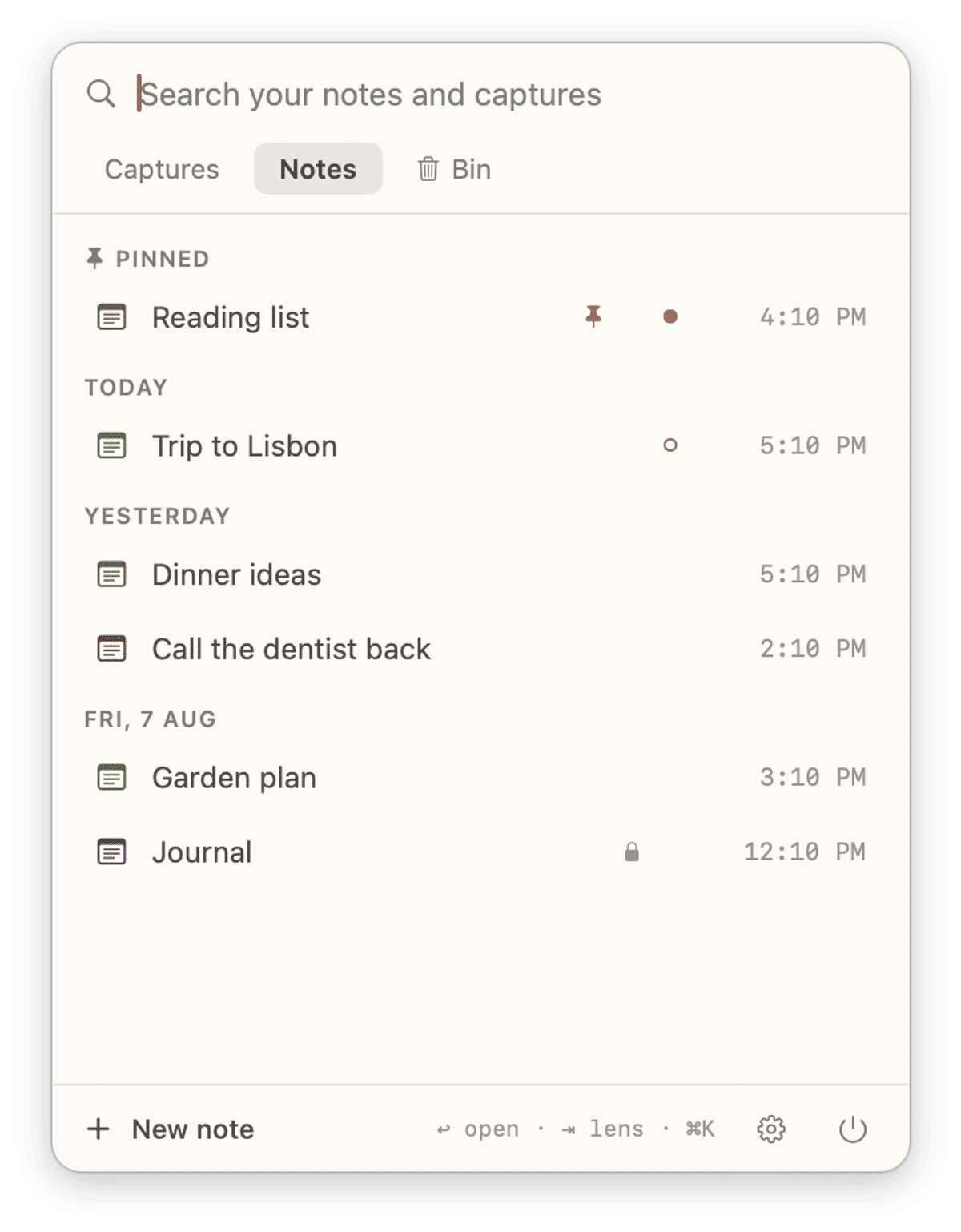
Here is what happens when you capture:
- Select text in any app and press ⌥⇧Space. If a note window is open, the text is added to the end of that note. If no note is open, it is kept as a capture on the Shelf. Hold ⌘ as you press it to start a new note from the selection instead.
- The text is read from the app through the macOS Accessibility API, so HushNotes does not fake a ⌘C and your clipboard is left as it was. That needs the Accessibility permission, which you grant once in System Settings › Privacy & Security › Accessibility.
- A small capsule at the bottom of the screen says "Text captured" and offers Undo for a moment. ⌘Z works too.
- Beside the text, HushNotes keeps the name and icon of the app it came from and the time. It does not keep the page address, the page title or the window title. If you would rather it did not keep the app either, turn off Remember where a capture came from in Settings › Note.
- Press ⌥⇧S to open the Shelf. Its keyword search covers your notes and your captures in one place, and a capture also matches on the name of the app it came from, so searching "Slack" finds what you captured there.
- Opening a capture shows its full text with the date and time and a Copy button, which is where a clipboard manager picks it up again if you run one.
- If an app will not share its selection with the Accessibility API, the Capture in HushNotes item in the right-click Services menu does the same job.
What it does not do, plainly: it does not record copies you did not capture, it does not capture images, and it has no tags or export. Search is keyword search, not a search that guesses what you meant. Notes and captures are stored on your Mac, with optional iCloud sync between your Macs if you switch it on, and there is no iPhone app. If you need your clipboard on your phone, that is a job for a clipboard manager like Paste.
The instant capture page shows the capture flow with real screenshots, and /compare/ puts HushNotes next to other note apps.
How we checked (October 2026): HushNotes behaviour comes from the app's source code. Vendor details come from Apple's Mac User Guide for macOS Tahoe 26 and macOS 27, from Paste's, Maccy's and Raycast's own sites and help pages, and from the convention documented at nspasteboard.org.
FAQ
Does macOS have clipboard history built in?
Yes, in Spotlight on macOS Tahoe 26. Press ⌘Space, then ⌘4, and click Enable the first time if Spotlight asks. On macOS 27, you choose whether it remembers 30 minutes, 8 hours or 7 days in System Settings › Spotlight.
Is a clipboard manager safe for passwords?
It depends on its settings. Maccy, Paste and Raycast all document ways to skip password manager copies, but Paste warns that some browser extensions copy in a way it cannot detect. Check the exclusion settings and keep retention short.
Is a capture tool just a clipboard manager with fewer features?
No. A clipboard manager records every copy automatically so you can paste it again. A capture tool records only what you send it and keeps it in a note you organise, with the app and time beside it.
Can I capture text without overwriting my clipboard?
Yes, with a capture tool that reads the selection directly. HushNotes reads it through the Accessibility API, so whatever you had copied stays on the clipboard.