
If you only need a note that stays above ordinary windows, Apple's Stickies is free, already on your Mac, and does it with one menu item. If the note has to stay put over full-screen apps, or stay out of a screen share, you need a dedicated app: SideNotes and HushNotes document full-screen behaviour, and HushNotes is the one here that documents keeping notes out of screen captures. Antinote is the pick for a fast throwaway scratchpad rather than a wall of notes.
Below, each app gets the same questions, then one table, then a five-minute test you can run on any of them.
What should an always-on-top note app actually do?
It should keep a small window above your other work without you managing it. Beyond that, these apps differ on shape (free-standing notes, a screen-edge panel, or one scratchpad window), on whether they survive a full-screen app, and on price, account, sync, search and what a screen share sees. Each section below answers those in the same order.
Full screen is the one that catches people out. A full-screen app gets a Space of its own, and a note app has to opt in to appear there. Our explainer on keeping a note always on top on macOS covers the window levels behind this, so this piece only reports what each app says it does.
Apple Stickies: is the built-in app enough?
For a lot of desks, yes. Stickies ships with macOS, costs nothing and asks for no account, and its floating option is a single menu item.
- How it floats: open a note and choose Window > Float on Top in the menu bar (Stickies User Guide).
- Full screen: not documented. Apple's guide does not say whether a floating sticky follows you into a full-screen app.
- Price: free, included with macOS.
- Account: none. The guide describes no sign-in of any kind.
- Sync: none documented. Notes stay on the Mac you wrote them on.
- Search: yes, across notes. Edit > Find > Find lets you search the current note or all notes.
- Screen share: not offered. A sticky is an ordinary window and appears in a share like one.
- Also worth knowing: Window > Translucent fades a note, and you can export a note as plain text, RTF or RTFD.
Who it suits: anyone who wants a reminder above a browser or a document and nothing else. It is the honest baseline, and nothing in this list beats free and already installed. Our Stickies comparison goes through it row by row.
SideNotes: notes that live on the screen edge
SideNotes takes a different shape. Instead of free-standing notes, it keeps one panel docked to the edge of your screen that you slide in and out.
- How it floats: the panel is "displayed on top of other apps", and you show or hide it with a keyboard shortcut, a click on its Open Bar, the menu bar icon, or by moving the pointer to the screen edge (apptorium.com).
- Full screen: yes, per the vendor. It says the panel is there whether you work in full screen, in regular windows or in Stage Manager.
- Price: $19.99, a "one-time purchase per major version", with a free trial (apptorium.com), and also on the Mac App Store (Mac App Store) and Setapp.
- Account: not documented.
- Sync: iCloud, across Mac, iPhone and iPad. SideNotes Mobile is sold separately.
- Search: yes. The App Store listing names built-in search.
- Screen share: not documented. Neither the product page nor the features page mentions screen sharing or recording.
- Also worth knowing: folders, colour coding, Markdown, checklists, and Shortcuts and AppleScript support. Requires macOS 13 or later.
Who it suits: people who keep a lot of reference material and want it out of the way until they reach for it. A panel that slides away is tidier than notes scattered over the desk, and its organisation features go well beyond a sticky note's. If what you want is a note that stays in view the whole time, a docked panel is a different habit.
Antinote: a scratchpad you summon with one key
Antinote describes itself as a "productivity scratchpad": a small floating window for the notes you expect to throw away, rather than a place to keep things.
- How it floats: a global hotkey, ⌥A by default, brings the window up from any app, and you can "pin the window above everything else when you need it to stay put" (Antinote features).
- Full screen: not documented.
- Price: $5 once, lifetime updates included, with a free trial (antinote.io).
- Account: none. The vendor says there is no Antinote account and no Antinote server.
- Sync: optional iCloud through your own account, off by default on the Mac under Settings > General > Sync notes with iCloud. Its own pages disagree about the phone: the manual says it "can sync notes between your Macs, iPhones and iPads" (Cloud Sync), while the home page says the iOS app "is in development with an Oct 2026 release date" and offers a beta list (antinote.io). Check with the vendor before you count on it.
- Search: yes. ⌘F opens a search pane that "finds text across notes" (Search).
- Screen share: not documented.
- Also worth knowing: inline maths with unit and currency conversion, timers, and export to text, Markdown or PDF. Requires macOS 14 or later.
Who it suits: anyone whose notes last minutes, not weeks. It is the cheapest paid app here, and its scratchpad tricks are things none of the others try. It is less suited to keeping several notes on screen at once.
HushNotes: floating notes that stay out of the share
HushNotes is a menu bar notes app whose notes float on top by default, including over full-screen apps, and whose note windows are kept out of screen shares, recordings and screenshots.
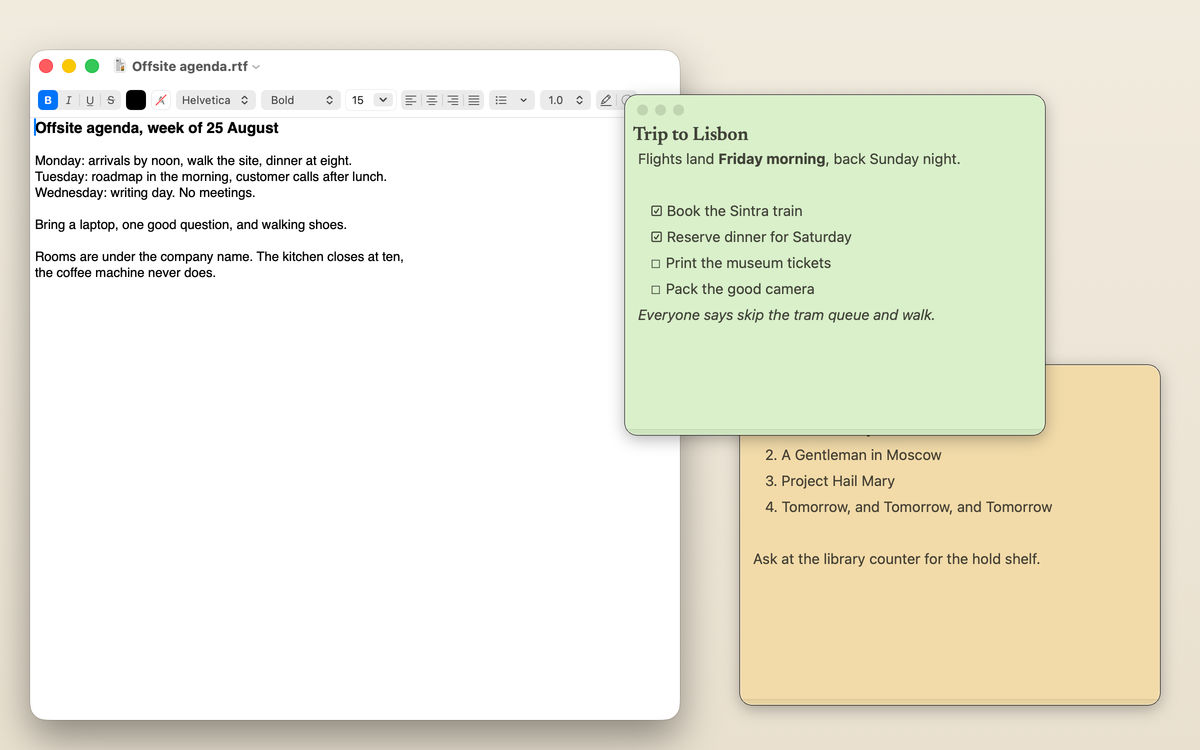
- How it floats: each note is a chromeless card with no title bar. Floating is on for every note by default, and Settings > Note > Notes float above other windows turns it off if you want notes to behave like ordinary windows.
- Full screen: yes. Floating notes join every Space and appear over full-screen apps.
- Price: $9.99 once, from the website. There is no subscription.
- Account: none. There is nothing to sign up for.
- Sync: optional, off by default, Mac to Mac through your own iCloud. There is no iPhone or iPad app.
- Search: keyword search across your notes on the Shelf, which opens with ⌥⇧S.
- Screen share: note windows use Apple's own window sharing property, so a share, a recording or a screenshot leaves them out. It is on by default and the switch is under Settings > Privacy > Screen Sharing. The menu bar icon stays visible, because macOS keeps it in captures. Hiding notes from screen sharing shows what the other side sees.
- Also worth knowing: ⌥⇧N makes a new note, ⌥⇧Space saves the text you have selected in any app along with that app's name and the time, and ⌥⇧H hides every note at once and brings them back where they were. Opacity runs from 10 to 100 percent per window and fades the paper, not the text. Requires macOS 14 or later.
Who it suits: people who keep notes on screen during calls, demos and recordings, and who want to collect text from other apps without switching to them. Its real gaps are covered at the end.
How do they compare side by side?
The table below is the short form of the four sections above. "Not documented" means the vendor does not say, not that the feature is missing.
| Stickies | SideNotes | Antinote | HushNotes | |
|---|---|---|---|---|
| Shape | Free-standing notes | Screen-edge panel | One scratchpad window | Free-standing notes |
| Floats over full-screen apps | Not documented | Yes | Not documented | Yes |
| Price | Free with macOS | $19.99 per major version | $5 once | $9.99 once |
| Account | None | Not documented | None | None |
| Sync | None | iCloud, Mac and iPhone | Optional iCloud | Optional iCloud, Macs only |
| Phone app | No | Yes, sold separately | Unclear, check the vendor | No |
| Search across notes | Yes | Yes | Yes | Yes, keyword |
| Out of screen shares | Not offered | Not documented | Not documented | Yes, by default |
| Export | Text, RTF, RTFD | As an image | Text, Markdown, PDF | No |
| macOS | Built in | 13 or later | 14 or later | 14 or later |
Floating itself is no longer rare, so it is a poor reason to pick one app over another. The real differences are full screen, the screen share, and whether you need a phone app or export. For a wider grid that includes Apple Notes and Bear, see the comparison page.
Which one should you pick?
Pick by the situation the note has to survive, not by the feature list.
- A reminder above a browser or a document, nothing more: Stickies. It is free, it is already there, and Window > Float on Top is all you need.
- Notes on screen during calls, demos or recordings: HushNotes, the one app here that documents keeping notes out of a capture. It also has built-in one-key capture of selected text and a key that hides every note at once.
- A large reference library that should stay out of the way: SideNotes. The edge panel and its folders suit material you consult rather than stare at.
- Quick sums, a timer, a phone number you will need for ten minutes: Antinote. It is built for notes you throw away.
- Notes on your iPhone too: SideNotes, through its separately sold mobile app. Antinote's own pages disagree on whether its iPhone app is out yet, so check with the vendor. HushNotes does not have a phone app.
Unsure? Start with Stickies. It tells you within a day whether a floating note helps at all.
How do you test one before you rely on it?
Five minutes covers the two claims that matter most, and you should run them on your own Mac whatever any vendor says, including us.
- The full-screen test. Make a note float, then send any app full screen with the green window button or View > Enter Full Screen. If the note is still there, the app opted in. If it vanished, it stayed behind on the desktop you left.
- The screenshot test. With the note on screen, press ⇧⌘3. Open the file on your desktop. If the app keeps notes out of captures, the note will be missing from the image.
- The recording test. Press ⇧⌘5, record the entire screen for a few seconds, and play it back. A still and a recording are both captures, and it is worth seeing both come back clean.
- The real call. Before a meeting that matters, share your screen to a second device in the same mode you will use on the day and look at the far side yourself.
Our guide to hiding a window from screen sharing explains the mechanism behind steps 2 to 4 and where it stops.
What HushNotes does, and what it does not
HushNotes does four things in this roundup well: notes that float over full-screen apps, note windows kept out of screen shares by Apple's own mechanism, one-key capture of selected text from any app, and a single key that clears every note off the desk. It needs no account, the price is $9.99 once, and sync is an optional mirror in your own iCloud between your Macs. The floating notes page shows it in screenshots.
It does not do everything the rivals do. There is no export, where Stickies, SideNotes and Antinote all have one. There is no iPhone or iPad app. Search is plain keyword matching, and there are no tags. A capture keeps the app's name and the time, never a page address. If any of those is the thing you need, one of the other three is the better buy, and this piece has tried to say which.
How we checked (October 2026): every fact about a rival comes from that vendor's own website, user manual or Mac App Store listing. Where a vendor says nothing, the comparison says "not documented" rather than guessing. HushNotes facts come from the app's source code, not a vendor page. Prices are in US dollars and can change.
FAQ
Does Apple Stickies stay on top of full-screen apps?
Apple does not document it either way. Stickies floats above ordinary windows with Window > Float on Top, and the quickest way to know about full screen is the test above on your own Mac.
Which always-on-top note apps hide notes from screen sharing?
Of the four here, only HushNotes documents it. Stickies does not offer it, and SideNotes and Antinote do not mention it on their own pages.
Is there a free always-on-top notes app for Mac?
Stickies is free and included with macOS. SideNotes and Antinote offer free trials of their paid apps.
Do any of these need an account?
Antinote and HushNotes say they need none, and Apple's Stickies guide describes no sign-in. SideNotes does not document one either way, though it documents sync through iCloud.